In this guide

Understanding the Value of a Lifetime Windows 11 Home License Key (16.90 EUR)
Are you considering purchasing the Windows 11 Home license key for your personal use or as a business solution? This article aims to help you understand the benefits, differences from other editions, and the genuine activation process. Whether you are a home user or running a small business, we will cover everything you need to know about this product.
Key Features of Windows 11 Home
Windows 11 Home is designed for everyday users who want an updated, secure, and fast operating system without the advanced features found in other editions such as Pro. Here are some highlights that make it a great choice:
- Modern Interface: The centered Start menu, Snap layouts, widgets, and Windows Hello authentication options.
- Security: Smart App Control and built-in Microsoft Defender security tools.
- Gaming Features: DirectStorage for improved gaming performance and Auto HDR support.
Compatibility and Requirements
To ensure that you can use the Windows 11 Home license key effectively, it’s important to have a compatible system. Here are the minimum requirements:
Configuration Details
- Compatible CPU: 64-bit architecture with at least 1 GHz and 2 cores.
- RAM: At least 4 GB of RAM.
- Storage: 64 GB or more (though less may be acceptable depending on your needs).
- OS Type: UEFI, Secure Boot, and TPM 2.0 enabled.
- Graphics: DirectX 12 support with WDDM 2.0 driver.
- Display Resolution: At least 720p resolution.
- Internet Connection: Required for activation.
Genuine License Key Activation
Steps to Activate Your Windows 11 Home License Key
The genuine license key is activated directly within the system, eliminating the need for a reinstall if your PC already runs Windows 11. Here’s how you can activate it:
- Download the Media Creation Tool: Visit the official Microsoft website and download the Media Creation Tool.
- Prepare Your Installation Media: Insert an installation USB drive or DVD into your computer.
- Run the Tool: Launch the Media Creation Tool and select your language, then choose "Create installation media for another PC."
- Insert Activation Key: In the next step, insert your genuine Windows 11 Home license key.
- Install Windows: Follow the on-screen instructions to install Windows 11 using the created media.
Activation Process
- After installing Windows 11, boot into the installation media and choose "Repair your PC."
- Select "Command Prompt" from the list of options.
- Type
slmgr.vbs /ipk <your_activation_key>where<your_activation_key>is the code provided with the license key. Replace all spaces in the activation key with hyphens (e.g.,SLK-A23-B45-C67-D89becomesSLK-A23-B45-C67-D89-). - Type
slmgr.vbs /skms 10.0.17763.1572to connect to the activation server. - Finally, type
slmgr.vbs /atoto activate Windows.
Comparison of Editions
Here’s a quick comparison between Windows Home and other editions:
| Edition | Features |
|---|---|
| Home | Basic features |
| Pro | Advanced features |
| Enterprise | Comprehensive suite including enterprise-specific tools |
Advantages of Windows 11 Home
- Affordable: At €16.90, it offers a good value for money.
- Simplified Interface: The user-friendly design is perfect for everyday tasks.
- Security and Performance: Built-in security features make it secure and performant.
Buying from MySoftKeys
MySoftKeys specializes in genuine software licenses and provides an exceptional shopping experience with instant delivery, 24/7 support, and a hassle-free guarantee. Here’s what you can expect:
Benefits of Shopping at MySoftKeys
- Instant Delivery: Your key will be emailed within minutes.
- Guarantee: If the key doesn’t work, it’ll be replaced or refunded.
- Support: 24/7 support available via email and chat.
- VAT Invoice: A VAT invoice is available in your account.
Final Thoughts
Windows 11 Home offers a robust set of features at an affordable price. If you are looking for the best value, we recommend purchasing from MySoftKeys. Their commitment to providing genuine licenses ensures that you get the most out of your investment and enjoy peace of mind knowing your software is authentic and activated correctly.
Conclusion
For those considering buying Windows 11 Home, this article has provided a comprehensive overview of its features, benefits, and activation process. Whether for personal use or business needs, Windows 11 Home delivers a modern and secure operating system without the need for an expensive subscription.
Frequently asked questions
How much does a Windows 11 Home license key cost?+
The price of the Windows 11 Home license key is €16.90.
What are the minimum system requirements for using the Windows 11 Home license key?+
To use the Windows 11 Home license key effectively, your system must meet the following requirements: compatible CPU (64-bit architecture with at least 1 GHz and 2 cores), RAM of at least 4 GB, storage space of 64 GB or more, UEFI, Secure Boot, TPM 2.0 enabled, DirectX 12 support with WDDM 2.0 driver, display resolution of at least 720p, and an internet connection for activation.
What are the steps to activate a Windows 11 Home license key?+
To activate your Windows 11 Home license key, you need to download the Media Creation Tool from Microsoft's official website. Insert an installation USB drive or DVD into your computer and run the tool. Then insert your activation key, select 'Create installation media for another PC,' and follow the on-screen instructions.
What are the advantages of using Windows 11 Home compared to other editions?+
Windows 11 Home offers a basic set of features suitable for everyday users. It is more affordable at €16.90, has a user-friendly design, and includes built-in security features such as Smart App Control and Microsoft Defender.
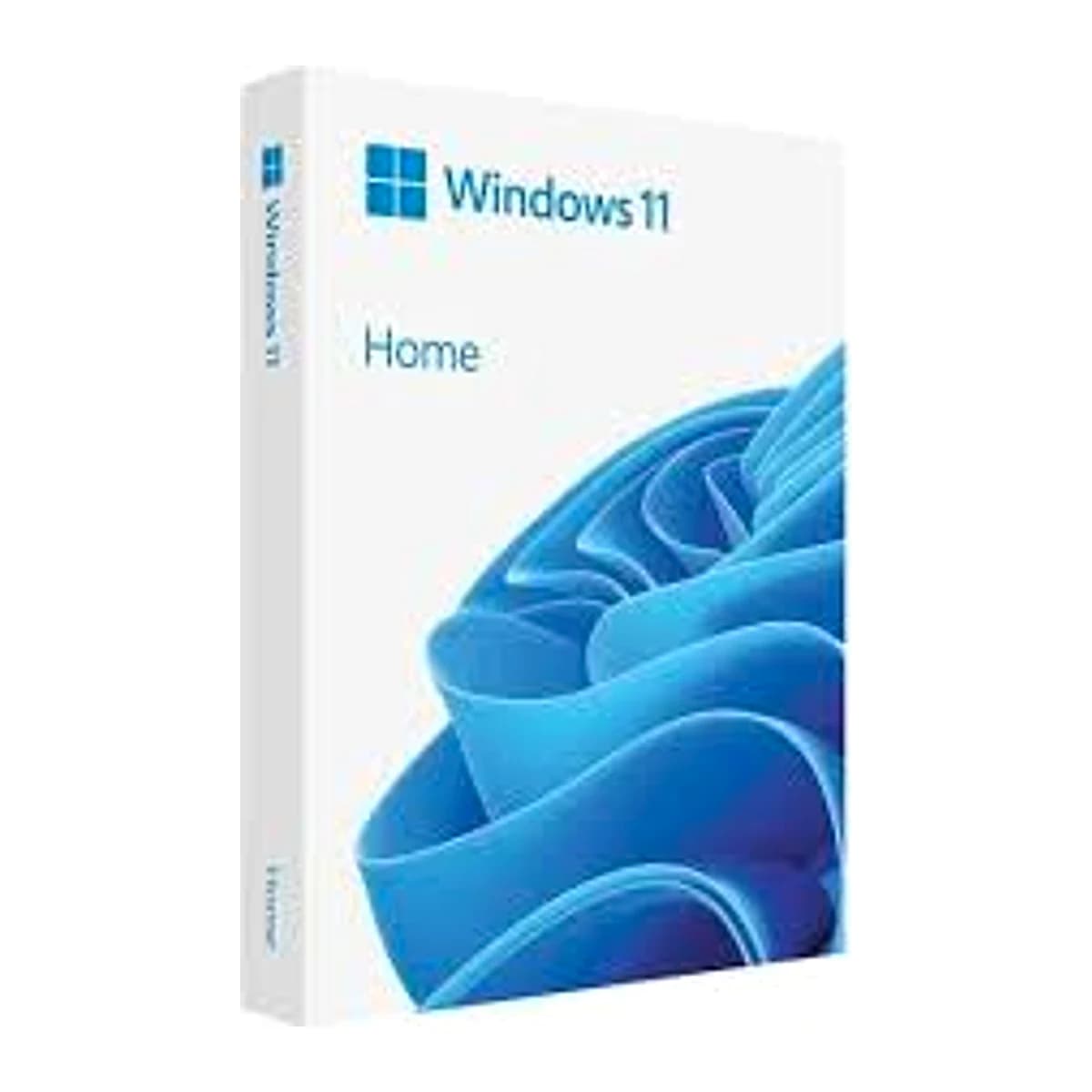
Ready to activate Windows 11 Home?
Genuine key emailed in minutes, activation guarantee and 7/7 support. Pay once, no subscription.