In this guide
What's included
Word, Excel, PowerPoint, Outlook, OneNote, Access, Publisher. Perpetual license for 1 PC running Windows 10 or 11 — pay once, no subscription.
Step 1 — Remove older versions
Several Office versions side by side cause activation errors. In Settings › Apps, uninstall any other Office or Microsoft 365 version (including preinstalled trials), then restart.
Step 2 — Install Office 2019 Professional Plus
- Open My licenses in your account: the official installer link is right under your key.
- Run the downloaded file and let installation finish (5–15 minutes).
Step 3 — Activate with your key
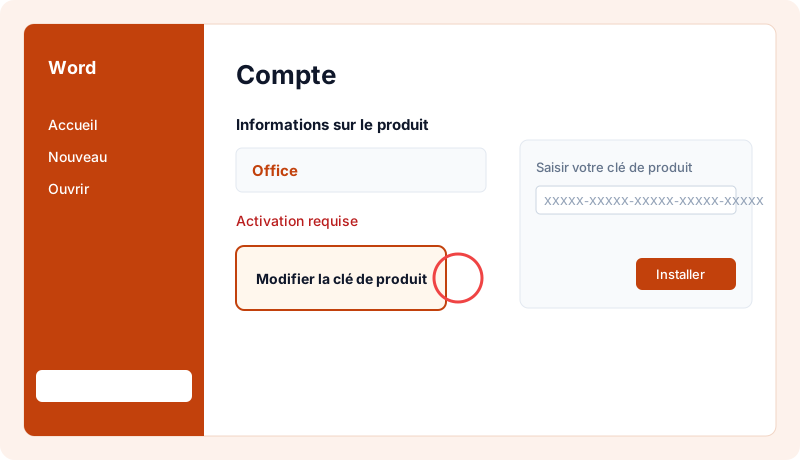
- Open Word.
- Go to File › Account.
- Click Change product key, paste your key and confirm.
Common issues
- "This key can't be used": another Office version is still installed. Remove it and retry.
- Phone activation requested: contact us from your account; we'll guide you or replace the key.
- Mac: Office 2019 Professional Plus is for Windows only. For a Mac, choose an edition marked "for Mac".
How long does it take?
Allow 10–20 minutes including the download, depending on your connection.
Check that the license is activated
Open Word › File › Account: "Product Activated" should appear under your edition name.
Reinstalling and changing device
Your key stays available any time under "My licenses". You can reinstall the software on the same device as often as needed. After a major hardware change (e.g. motherboard), the publisher may ask for reactivation: contact us and we'll guide you.
Good practices
- Always download the software from the publisher's official website or the link supplied with your key, never from third-party sites.
- Don't share your key: it's tied to your device and could be blocked.
- Keep Windows updated to receive security fixes.
- Keep your invoice, available in your account.
Need a license?
At MySoftKeys every license is genuine, delivered by email within minutes with the official download link, and guaranteed: a key that doesn't work is replaced or refunded. Our support team answers 7 days a week to help with installation.
Frequently asked questions
Is Office 2019 a subscription?+
No, it's a perpetual license: you pay once.
Which apps are included?+
Word, Excel, PowerPoint, Outlook, OneNote, Access, Publisher.
Does it work on Mac?+
No, this edition is for Windows. For a Mac, choose an edition marked for Mac.
Should I uninstall my old Office?+
Yes, remove any other Office or Microsoft 365 version before installing to avoid activation errors.
When will I receive my key?+
Usually within 2 minutes of payment confirmation, by email and in your account under My licenses.
Is the license genuine?+
Yes, it activates on Microsoft's official servers. If it doesn't work, we replace it or refund you.
Can I get an invoice?+
Yes, every order comes with an invoice, with VAT for businesses.
Ready to activate Office 2019 Professional Plus?
Genuine key emailed in minutes, activation guarantee and 7/7 support. Pay once, no subscription.