في هذا الدليل
Before you start
- A USB drive of at least 8 GB (it will be erased) for a clean install.
- Your Windows 11 Home license key, sent by email and available in your account under "My licenses".
- Back up important files before reinstalling.
- A Windows 11-compatible PC: recent CPU, TPM 2.0 and Secure Boot (check with the PC Health Check app).
Already running Windows 11 Home? Just activate
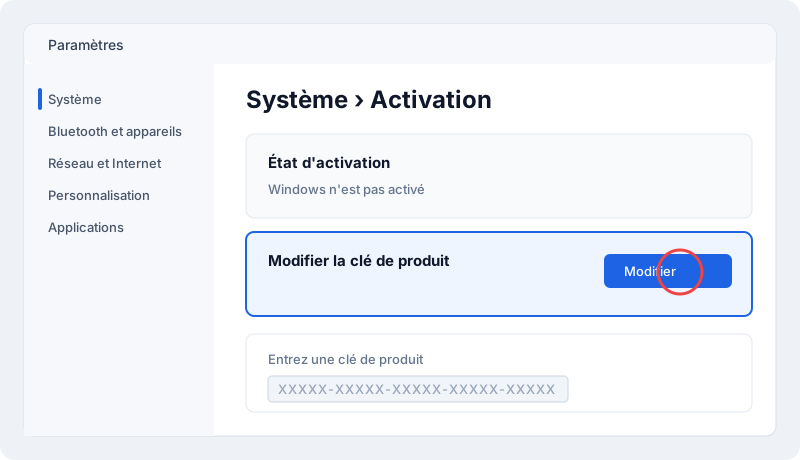
- Open Settings › System › Activation.
- Click Change product key.
- Paste your key (copy it from your account to avoid typos) and confirm.
Clean install from a USB drive
- On a working PC, download the Windows 11 Media Creation Tool from Microsoft's official website.
- Run it, accept the terms and choose Create installation media.
- Pick the language and edition, then USB flash drive.
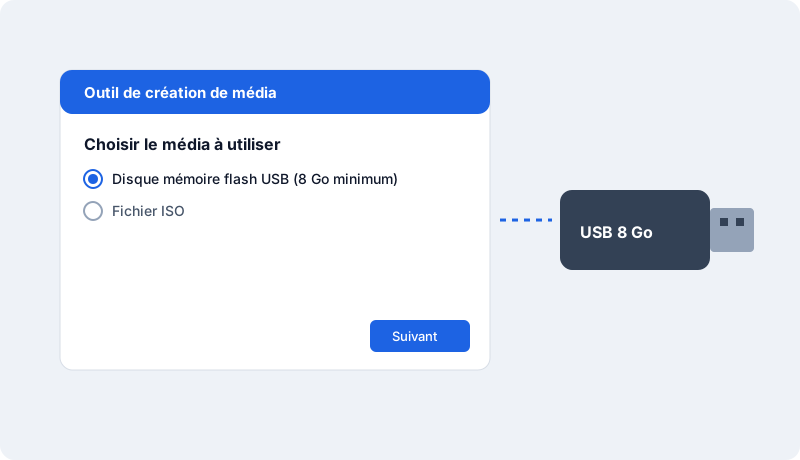
- Boot the target PC from the USB drive (F12, F11 or Esc at startup depending on the brand).
- Follow the setup; at the key step, enter your key or choose "I don't have a product key" to add it later.
- Once on the desktop, check activation in Settings › System › Activation.
Common activation errors
- 0xC004F050 / 0xC004C003: the key was mistyped or doesn't match the installed edition (Home vs Pro).
- 0x803FA067: upgrading from Home to Pro — enter the Pro key via "Change product key"; the PC restarts as Pro.
- No connection: activation needs Internet; retry once connected.
- Still stuck? Open a claim from your account with a screenshot: we reply within one business day and replace the key if needed.
How long does it take?
Allow 2 minutes for a simple activation, 30–45 minutes for a clean install from USB.
Check that the license is activated
Open Settings › System › Activation: it should say "Windows is activated with a digital license" or "…with a product key". You can also run slmgr /xpr in a command prompt.
Reinstalling and changing device
Your key stays available any time under "My licenses". You can reinstall the software on the same device as often as needed. After a major hardware change (e.g. motherboard), the publisher may ask for reactivation: contact us and we'll guide you.
Good practices
- Always download the software from the publisher's official website or the link supplied with your key, never from third-party sites.
- Don't share your key: it's tied to your device and could be blocked.
- Keep Windows updated to receive security fixes.
- Keep your invoice, available in your account.
Need a license?
At MySoftKeys every license is genuine, delivered by email within minutes with the official download link, and guaranteed: a key that doesn't work is replaced or refunded. Our support team answers 7 days a week to help with installation.
الأسئلة الشائعة
Is the Windows 11 Home license lifetime?+
Yes, it's a perpetual license — no subscription.
How many PCs?+
One key activates Windows on one PC.
Do I need to reinstall Windows?+
No, if your PC already runs Windows 11: just enter the key in the activation settings.
When will I receive my key?+
Usually within 2 minutes of payment confirmation, by email and in your account under My licenses.
Is the license genuine?+
Yes, it activates on Microsoft's official servers. If it doesn't work, we replace it or refund you.
Can I get an invoice?+
Yes, every order comes with an invoice, with VAT for businesses.
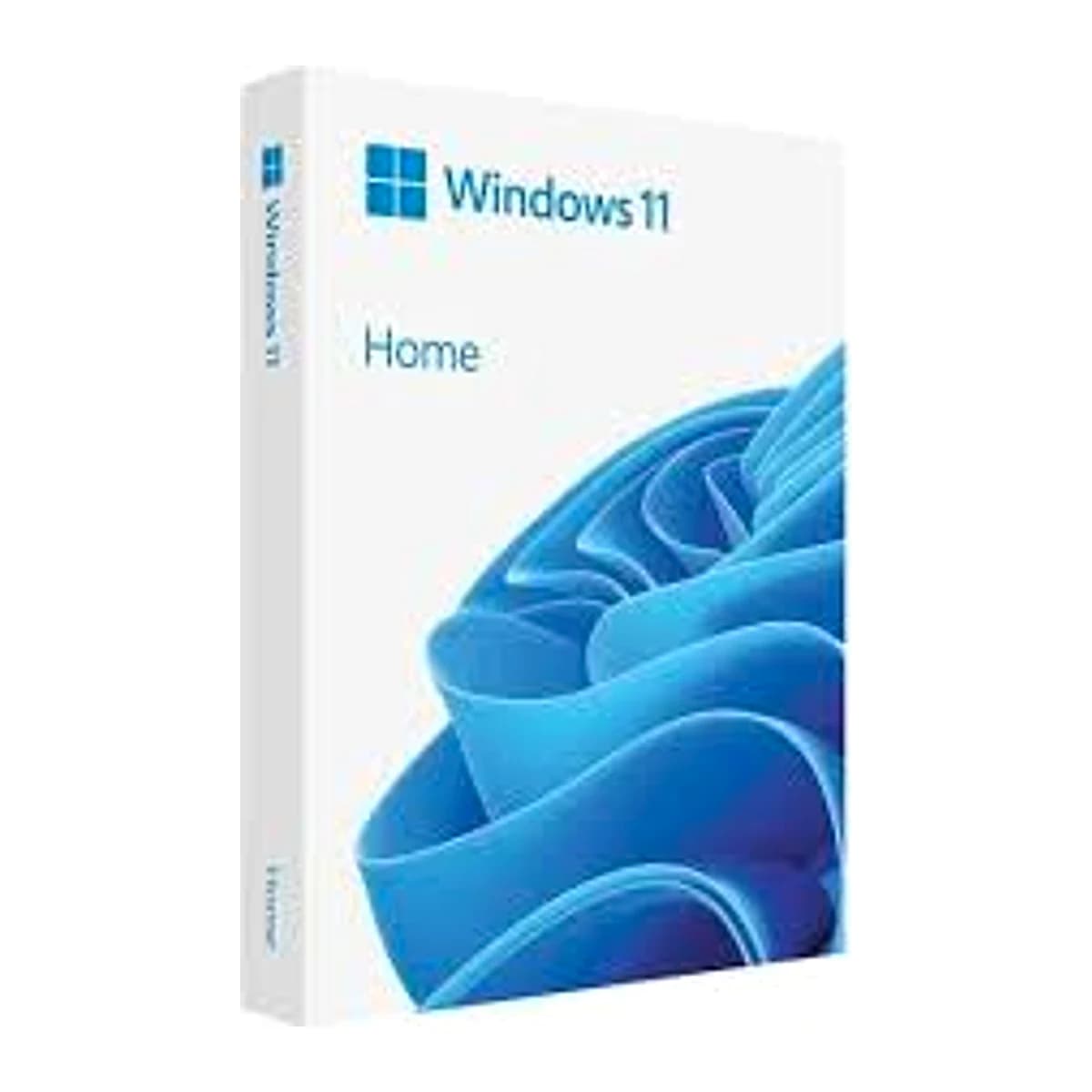
هل أنت مستعد لتفعيل Windows 11 Home؟
مفتاح أصلي يُرسل خلال دقائق، ضمان التفعيل ودعم طوال الأسبوع. دفعة واحدة دون اشتراك.